
How to turn your content into audio without setting up a studio
 Lourdes15 min read
TL;DR. Audio stopped being a secondary format a while ago: in 2026, 58 % of Americans already listen to podcasts every month, and in Spain podcast interest is up 14 % year over year. Studio ships Convert to audio inside the editor, on every social-adapted card and in the public API, so the content you have already written turns into natural audio without leaving the app. Practical guide to when to use it, which format to pick and what to expect from the result.
Picture this. You have just published a long article that took you three afternoons. You share it on LinkedIn, in the newsletter, on X. But your ideal customer does not read: they listen. In the car, cooking, working out. The only way to reach them with that content would be to have it as audio, and until recently that meant recording it yourself, hiring a voice actor or wrestling with an audio editor you have no time for.
Digital audio numbers stopped being a niche case. According to Edison Research's Infinite Dial 2026, 58 % of Americans aged 12 and over listen to podcasts every month, an all-time record, and 81 % consumed online audio in the last month (about 233 million people). In Spain, the Reuters Institute Digital News Report 2026 documents 14 % year-over-year growth in podcast interest. The format that was a curiosity not long ago is anything but.
That is where Convert to audio fits inside Studio. This article is about how it works, when it makes sense to use it, which format to pick and what to expect from the result. And also what it will NOT do for you, because there are things a voice engine cannot solve no matter how well tuned it is.
Audio stopped being an extra a while ago
There is a pattern that keeps showing up in any small content team: the same text has to live in five different places. The article on the blog, the LinkedIn post, the Instagram adaptation, the email to your list, the product page. And on top of that, more and more, the audio: the short episode for social, the voice track for the reel, the listenable version for the reader who does not have time to read.
The problem is that audio, traditionally, was expensive. Not in money. In friction. Recording yourself needs a decent mic, a room without echo, three takes and an afternoon in an editor to strip pauses and clean up the "uhhh" of minute six. Hiring a voice actor needs a brief, a price, a schedule, revisions. And using an outside text-to-speech tool needs another account, another price, another flow, and on top of that manually uploading a text you already had in Studio.
What Convert to audio does is close that gap. The content you have already written, generated or adapted inside Studio turns into audio without leaving the app, without signing up for anything new, without opening another tab. The button lives where the text already is.
A concrete example. A marketing consultancy publishes a long B2B strategy article every two weeks. A small percentage of their list reads that article. But if that same article has a twelve-minute audio version, their busiest readers, the ones driving to meetings, listen to it in the car and reply on WhatsApp when they arrive. The text stays the same. The actual reach changes entirely.
Convert to audio in Studio: what it is and what it is not
Before getting into the detail, worth clearing up what you are using when you press the button.
What it is. A function built into Studio that turns any text (written by you, generated by the engine or adapted for a social network) into natural audio. The internal engine is called ApisDom Speak and lives inside the ApisDom ecosystem. It is not a third-party service you sign up for on the side. It is charged with the same credits you already use for generation and adaptation: nothing new to buy, nothing new to learn.
What it is NOT. Deliberately. It is not an audio editor: you will not be cutting tracks, mixing music or adding effects here. It is not a dramatic dubbing tool with a virtual actor: the voices are natural and stable, they do not play a character with adjustable dramatic intensity. It is not a personal voice cloner: you will not upload 30 seconds of yourself for Studio to imitate. And it is not a video editor: if you need to sync audio with picture and music, download the file and take it to your favourite editor.
That restraint is on purpose. The focus is that the "text-to-audio" step comes out well and stays cheap to operate. Everything else (mixing, video, fine editing) is left to tools built specifically for that.
The three places where the button appears
The first thing that surprises anyone opening it up is that the Convert to audio button sits where the text already is, not on a separate screen. There are three points where it shows up:
In the free editor (/editor/new). When you write or paste your own text straight into the editor without going through the generation engine. Useful, for example, to turn into audio a draft you bring from outside, meeting notes, a long email or an article you published a while back and now want in a listenable version.
In the engine-generated content editor (/editor/[id]). When you have just generated an article with Studio and are reviewing or editing it. Useful for the most natural flow: "I just finished this article and I want its audio version in one go."
On every social adaptation card. If you adapt an article for Facebook, Instagram, X, LinkedIn, TikTok, YouTube or Pinterest, each card carries its own button. Useful for generating audio specific to that network: for example, the voice track for an Instagram reel is different from the one for a TikTok video because the adapted text is different for each.
Three real profiles to see it clearly:
A neighbourhood café publishes a weekly Instagram carousel about the origin of its beans. It adapts the long blog text to Instagram from Studio and, on that card, hits Convert to audio. That audio is the voice-over for the reels it posts during the week, without rewriting the script.
A B2B consultant generates a piece about managing remote teams with Studio every two weeks. In the same editor where they review the draft, they hit Convert to audio and publish that version as a short episode in their newsletter for subscribers who prefer to listen before reading.
An online store selling sports supplements writes a long educational post (2,500 words) about plant-based proteins. It adapts the post for YouTube from Studio and, on the YouTube card, hits Convert to audio to get the narrated script for the video it is going to shoot that afternoon.
The button does NOT execute anything if the text is empty. If you press it before you have content, Studio tells you: "Write, paste or generate content before converting it to audio." A simple fuse so nobody pays to convert air.
Would you rather see it in action? This complete Studio walkthrough shows the full workflow: generating an article, adapting it for social media, and converting it to audio. The audio demonstration starts at 3:25. English subtitles are available in the YouTube player.
Five text formats: pick according to what you are publishing
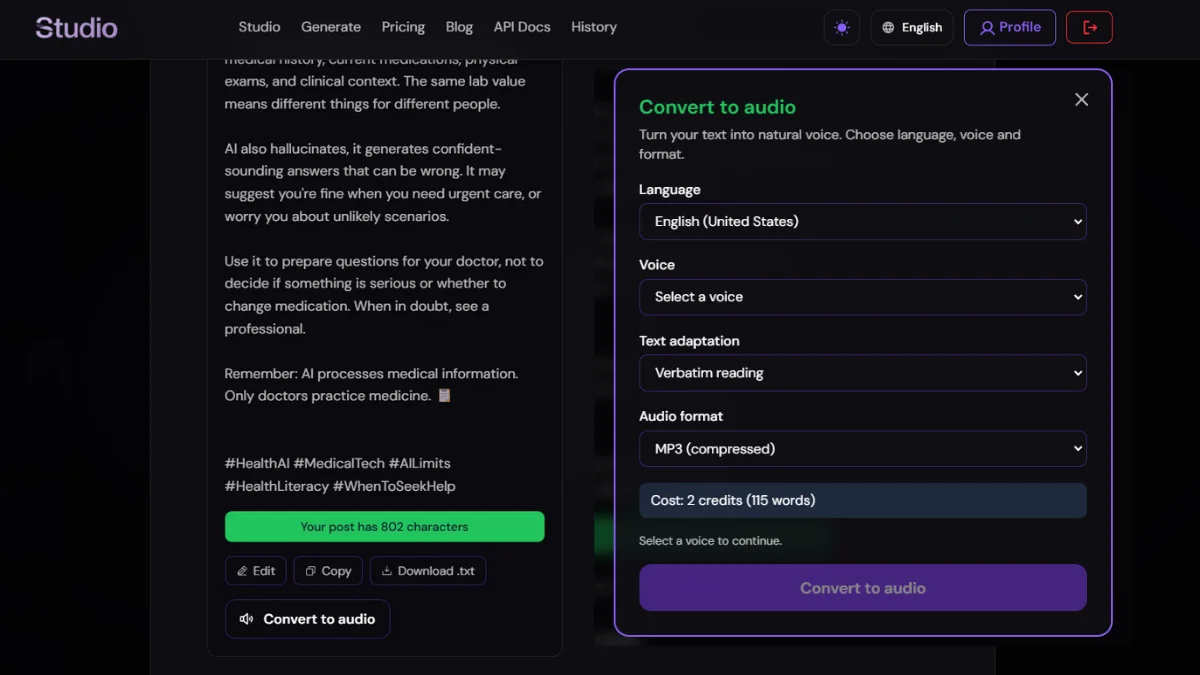
This is where Studio goes beyond the classic "read the text as-is." The engine can process the text in five different ways before narrating it. Picking well saves you edits later.
Literal. The engine reads the text EXACTLY as you wrote it, without changing a comma. Use it when you have already worked the text to sound good read out loud: a polished script, a carefully written letter, a reply you want to publish without touch-ups. It is also the ideal format if your brand has a very specific tone you do not want any intermediate layer to alter.
Summary. The engine summarises the text faithfully before reading it. Use it when your original content is long (a 3,000-word article, a 5,000-word guide) and you want a 3-4 minute listenable version for social or newsletter. You are publishing the same message, just compacted.
Podcast script. The engine rewrites the text in conversational format, episode-style. Shorter sentences, spoken transitions, direct tone. Use it when you want the audio to sound like a podcast, not a read article. A formal article written for reading becomes something you can listen to without feeling like a manual is being recited at you.
Clips. The engine extracts short independent pieces from the text. Use it when you want several brief chunks to publish separately: a series of short audios for X, three micro-episodes for Instagram stories, five "pills" for Reels. Instead of a long audio, you leave with several standalone audios.
Translation. The engine translates the text into the language you specify and narrates the translation. Use it when you have content in Spanish and want the English version (or vice versa) directly as audio, without translating separately. One step: text → audio in another language.
A real case combining two formats. You have a 2,000-word article on the blog. For the newsletter, you use "Summary" and get a 3-minute audio with the essentials. For your own podcast, you use "Podcast script" on the same article and get a 12-minute episode with spoken tone. For Instagram, you adapt the text for Instagram and use "Clips" on the adapted text, and get 4 micro-audios of 30 seconds each. Same article, three formats, three channels, without writing anything again.
Three audio formats, three destinations
The format of the audio that comes out the other side is also up to you. There are three, and each has its slot.
MP3. The universal one. Any player, any smartphone, any platform opens it. Small file. It is the default and handles 90 % of cases: uploading it to Spotify, Anchor, WhatsApp, email, a website. If in doubt, MP3.
OGG. Optimal for the web. Even smaller than MP3 and sounds good in a browser. This is the one you pick when the audio is embedded in your own site, in an app or in an HTML5 player and you want it to load fast even on slow connections.
WAV (linear16, uncompressed PCM with WAV header). The format for editing. Larger because it is uncompressed, but it keeps the quality intact for taking to Audacity, Adobe Audition or Reaper and mixing with background music, effects, cuts or normalisation. If your audio goes through post-editing, this is the pick.
The voice: curated catalogue and free preview before paying
Before converting any text, you pick a language and a voice. The voice dropdown fills with what Studio has curated for that language. Each voice appears with a human label ("Paco", "María", "Ana", depending on what the engine's admin has decided to publish), not with the internal technical name.
Next to the dropdown there is a button: Play sample. Pressing it generates a short sentence with the selected voice and plays it right there in the modal. That sample does not cost credits. You can try two, three, however many are available, before deciding which one fits your project. Practical tip: do not pick the first one by default. Listen to at least two, because the same text sounds different depending on the voice and sometimes the one you least expect is the one that best matches what you want to publish.
When you change language in the dropdown, the voice catalogue is recalculated: the voices available for Spanish are different from those for English. In this first release, Studio exposes two languages: Spanish (Spain) and English (United States). The engine's catalogue will keep growing over time, and Studio will add them to the dropdown as they stabilise.
Credits and transparency
One principle Studio does not break: the user sees the price before paying. Voice is the same.
The cost rule is simple and singular: 2 credits per block of up to 300 words. Full table:
Words | Cost |
|---|---|
1-300 | 2 credits |
301-600 | 4 credits |
601-900 | 6 credits |
901-1,200 | 8 credits |
While you write or paste text in the modal, the cost appears live on screen: no need to "click Estimate" or hit anything; the number updates as the text changes. If you delete a paragraph, the cost drops immediately. If you add another, it goes up.
Credits are the same ones you already use to generate and adapt content in Studio. There is no separate voice pot. If you have 40 credits available, those 40 work equally for generating an article, adapting it to three networks, or converting text into audio. It is a single balance, and the user decides how to split it.
If the engine fails, your credits go back to your bucket. Studio does not charge for audios that were never delivered.
That is not a marketing promise. It is an implemented rule: if the conversion ends in an engine-side error, Studio automatically returns the reserved credits to your balance, without you having to open a ticket or ask for anything. It is logged in your refund history in case you want to check it later.
Your history is a podcast under construction
Every audio you generate lands automatically in your content history in Studio, mixed with written articles and social adaptations. On the card you see the title, the date, the word count of the source text, the voice used, the language and the credits it cost; and, right below, how long it has left before it expires.
Expiry is 60 days from creation. After that, Studio automatically deletes the audio. That is more than enough time to download and save (to your disk, your Google Drive, your podcast platform) whatever material you want to keep. Downloading is direct from the history card, without leaving Studio.
That design answers a simple idea: Studio is not your long-term library, it is your working bench. It keeps enough for you to rescue anything for the following weeks, but it does not accumulate files indefinitely. If your podcast needs permanent storage, those files live better in the place built for that: your own podcast host, your drive, your server.
For developers: the same capability via API
If instead of using Studio by hand you prefer to integrate audio conversion into your own flow (your CMS, your editorial pipeline, your automation), the same capability is exposed as a public API inside Studio Developers.
There are three endpoints:
POST /api/v1/voice/estimate: calculates how many credits a conversion would cost without executing it. Idempotent and free. Useful for showing your app's user the price before confirming, or validating in your backend that the operation fits the balance.POST /api/v1/voice: runs the conversion and returns the audio along with the jobidand theaudioUrlfor download. Charges credits on success and returns them if it fails on the engine side, exactly like the product's internal version.GET /api/v1/voice/voices: returns the curated catalogue of voices available for a given language. Called before converting so your application knows which options to offer its user.
Authentication is via Studio API key (sk_studio_...) and credits are drawn from the same balance owned by the key holder.
Cases where it makes sense to use the API instead of the Studio UI: automating the audio generation of every post published in your CMS every week, building a pipeline that converts every newsletter sent into a podcast episode, or building inside your own application a full "generate → adapt → convert to audio" flow without the end user ever leaving.
Full examples in cURL, JavaScript and Python live in Studio Developers with the detail of every parameter, every response and every error code. This article does not reproduce them because duplicating what is already there does not add value to anyone.
To close
The reason for having Convert to audio inside Studio is not to add one more feature. It is that a small business's content already lives in too many places to also ask whoever produces it to open another tool to finish the job. If the text is in Studio, the audio should also be in Studio. One button, one balance, one history. The rest (where you publish, how you distribute, with what editing) is still yours and depends on your strategy.
And an honest warning before wrapping up. A voice engine, however good, does not replace a human voice actor who brings interpretation, breathing and creative decisions. If your brand depends on a voice that moves people in a 30-second ad, hire that person. If your brand depends on publishing a lot of written content and you need its audio version efficiently and sustainably, Studio is exactly for that.
The voice that arrives is the one that got produced. The one that never gets produced never arrives.
Frequently asked questions
Does the audio sound robotic?
Not to the level of the TTS from five years ago, but it is also not a human performance. It is natural, neutral, clear voice, without a marked accent. It sounds like simple professional narration, in the style of an audio guide or an informational podcast narrator. Before generating any audio, listen to the free sample in the modal: it saves you surprises.
Can I use the audio for my commercial podcast or on YouTube?
Yes. The audio you generate is yours and you can use it on any channel (your podcast, your YouTube channel, your website, a client) without platform limits. Studio does not claim rights over what gets generated with your credits.
What if I do not like the voice I picked after generating?
The audio already generated is what it is. You can generate another one with a different voice paying the same cost again. Yes, it does cost credits because each generation is a job for the engine. That is why listening to the free sample first is worth it: it saves you paying twice.
How long does a conversion take?
Depends on the length of the text and the requested format. A 500-word text in "Literal" format and MP3 audio resolves in a few seconds. A long text in "Podcast script" format and WAV audio can take longer, because there is more work behind it. In the modal you see a loading indicator until the audio is ready.
How do I integrate the audio with my website?
Download the file in the format you need from the history card, upload it to your hosting or CDN and link it with the standard <audio> tag. If you generate for the web, the OGG format loads faster; for maximum compatibility, MP3.
Sources
Data | Source |
|---|---|
58 % of Americans ≥12 listen to podcasts monthly in 2026; 81 % consume online audio monthly (≈ 233 million) | Edison Research, The Infinite Dial 2026, March 2026 |
14 % year-over-year growth in podcast interest in Spain in 2026 | Reuters Institute, Digital News Report 2026, June 2026 |
Related articles
ChatGPT Can Cost You a Sale Before the Click
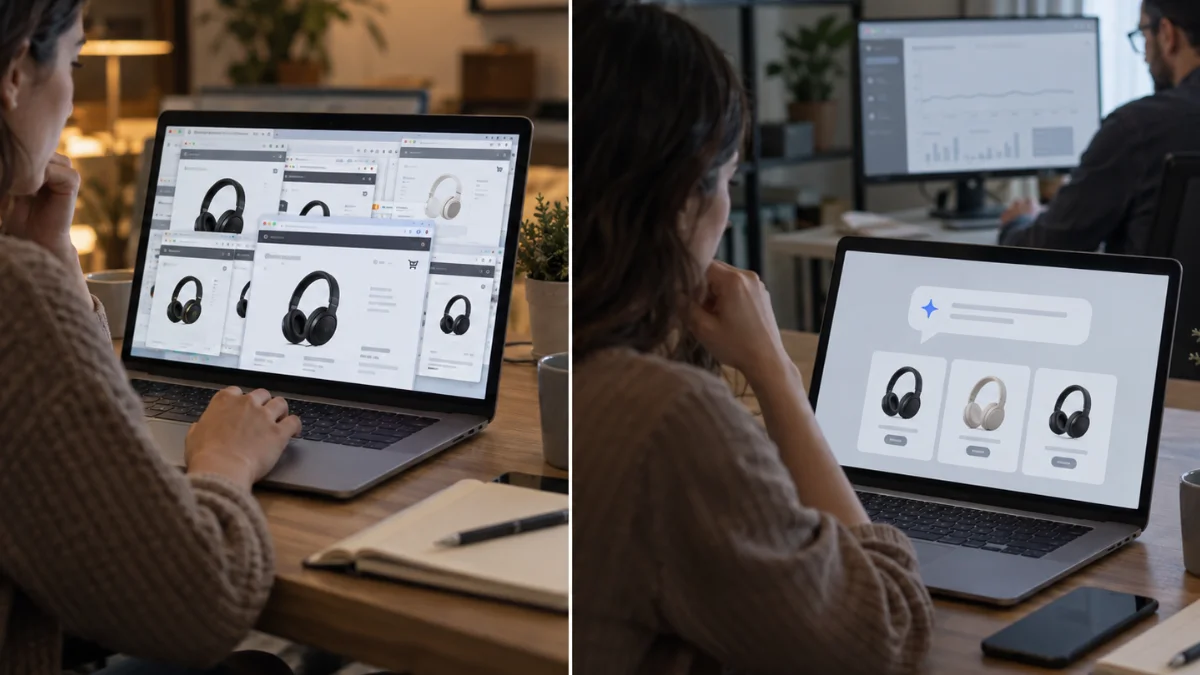
Some sales are no longer lost on your website. ChatGPT can compare, reject and recommend before the click, leaving no visit, no abandoned cart and no trace in your dashboard.
Answer Capsules: How to Structure Content So AI Can Cite It
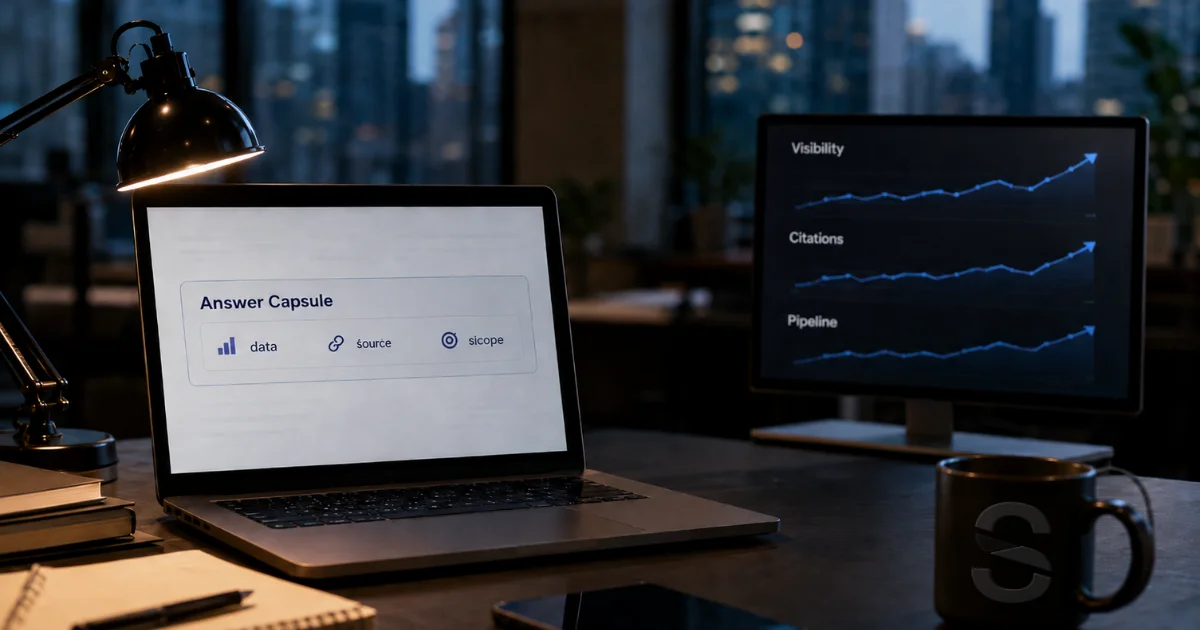
Answer Capsules structure content so RAG systems can extract, cite and measure its impact on visibility, MQLs and pipeline when traditional attribution fails.

Don't publish every day. Build a system
Publishing daily out of fear of vanishing burns you out, blurs your brand and fills your channels with noise. The way out is a system: a few good ideas, one base piece a week and channel adaptation.
Found this useful? Share it with someone who needs it!